
FIELD CHECK · SOFTWARE
How to update metal detector firmware safely
Check whether your exact metal detector has a manufacturer firmware update, prepare its cable and battery, and avoid common failed-update mistakes.
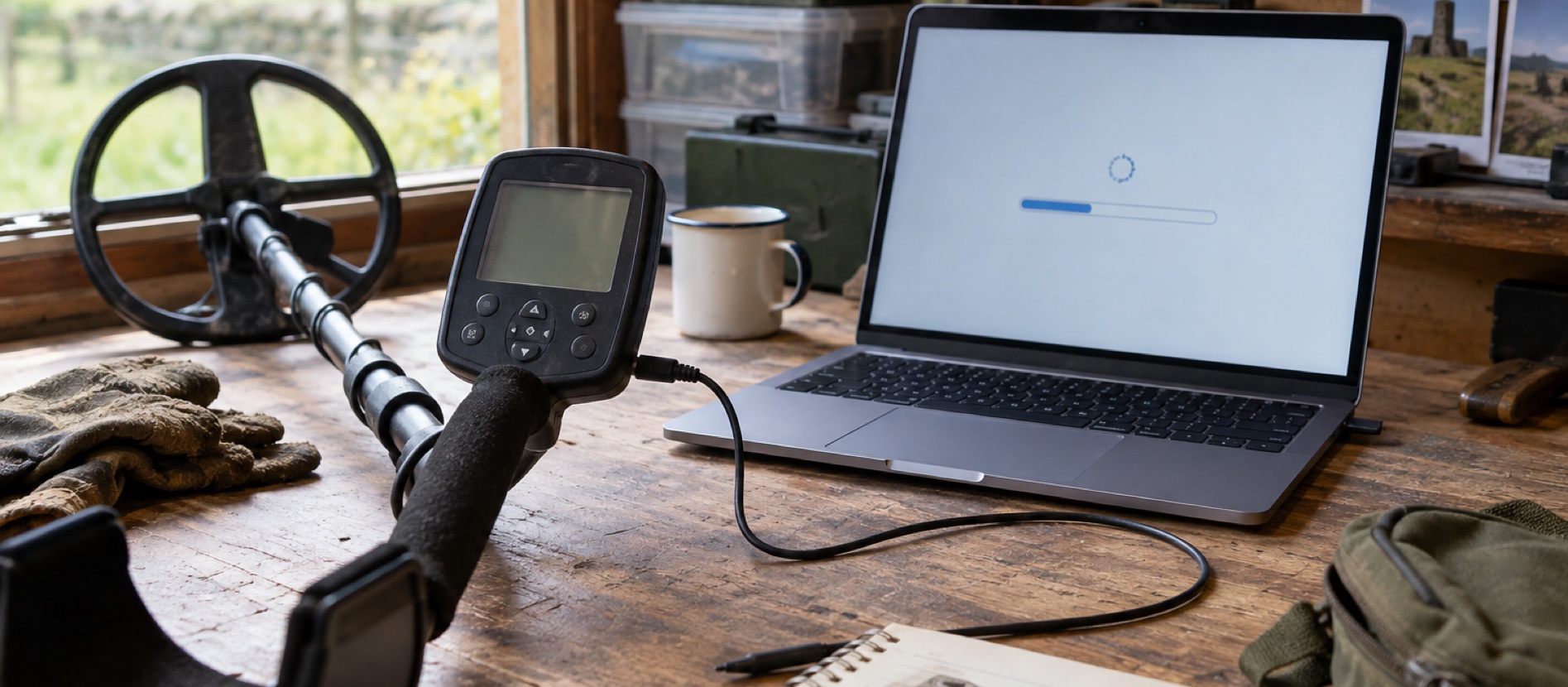
Older VANQUISH software instructions do not automatically apply to the 360.
The X-TERRA PRO and SIMPLEX Ultra have separate official update routes.
If an update fails, follow the maker's recovery guidance before improvising.
Do you need to update at all?
Firmware is the software running inside a detector. A manufacturer may release an update to improve a feature, correct a fault or add a control. That does not mean every detector needs a monthly update. First identify the exact model on the control unit and its manual, then check the manufacturer's own download page for that model and read the change notes. A search result for a similar product can be dangerous: VANQUISH 340/440/540, VANQUISH 360, X-TERRA PRO and X-TERRA ELITE are not interchangeable update targets.
Minelab has a dedicated X-TERRA PRO software page with its utility and recovery instructions. Nokta lists SIMPLEX New Generation software through its SIMPLEX Ultra product page. The older VANQUISH update page describes the earlier series and its low-profile micro-USB connection; do not assume those steps apply to the newer waterproof VANQUISH 360. For the 360, follow only an update expressly labelled for that exact model on Minelab's current product downloads or support pages.
Prepare before opening the updater
Use a reliable laptop or desktop computer supported by the official utility. Download the tool from the manufacturer, not a forum mirror or a driver-download site. Check the instructions for the required operating system, cable, coil connection and detector power state. Charge the detector or install charged batteries as the maker specifies. Set the detector on a stable dry surface, keep the cable away from the edge and close unrelated software that might take over the USB connection. A charge-only USB cable may not carry data on models that require data transfer.
For X-TERRA PRO specifically, Minelab says the coil must be connected, the detector must be on and its magnetic charging/data cable must sit securely against clean, dry contacts. Only one device should be connected to the update utility. Do not handle the detector while it updates. That is much more precise than a generic instruction to 'plug it in'. Save or photograph custom settings first even if the manufacturer says they should be retained.
Follow the exact install and completion prompts
Launch the model-specific utility and connect in the sequence the maker provides. If it says the detector is already current, quit without forcing another file. If an update is offered, read its version and model name before installing. Leave the detector connected and powered as instructed until both utility and machine report completion. A display going blank or a temporary progress screen may be normal for some models; interpret it using the official update instructions rather than disconnecting in panic.
After completion, disconnect only when prompted, restart and check mode, volume, sensitivity, pairing and saved user profiles. Run a short known-target test away from metal clutter. If settings have changed, restore them deliberately rather than assuming a firmware change has damaged performance. Our air-tests guide helps keep this functional check realistic.
If the update fails
Do not repeatedly unplug, force a connector, open the housing or install firmware intended for another model. Read the manufacturer's recovery section. Minelab says an interrupted X-TERRA PRO update can usually be recovered by restarting the utility and detector, reconnecting its cable and running the update again; it also notes a small chance of losing user settings. Other makers and models may behave differently. If the approved recovery steps fail, contact the manufacturer or an authorised service centre with the model, serial number, utility version and exact error shown.
Keep the detector dry and maintained between updates. A firmware install will not repair a physically damaged coil cable, loose plug or salt-contaminated charging port; use coil-cable troubleshooting or the maintenance guide for those symptoms.
Common questions
Frequently asked questions
Does every metal detector need firmware updates?
No. Check whether the manufacturer offers an update for the exact model and whether its changes matter to you. A different model's update is not suitable.
Can I use the old VANQUISH update utility for a VANQUISH 360?
Do not assume so. The older VANQUISH update page describes different models and connection hardware. Use only Minelab instructions expressly labelled for the 360.
What should I do before starting an update?
Use the official utility, confirm model and operating-system support, charge the detector, connect the required coil and data cable, and place everything on a stable dry surface.
What if the detector disconnects during firmware installation?
Follow the exact manufacturer's recovery instructions. Minelab provides a restart-and-reconnect path for X-TERRA PRO, but other models can differ; contact authorised support if recovery fails.
Helpful products
Model-specific support matters
These detectors have manufacturer-published update paths. Check the exact model and official instructions; the product links are for equipment context, not firmware downloads.

Upper mid-range
Minelab X-TERRA PRO
Best for: A committed inland beginner who wants to learn how frequency, ground balance and audio choices change detector behaviour.
- Selectable 5 / 8 / 10 / 15 kHz
- Whole detector to 5 m (IP68)
- 1.3 kg
Selectable 5, 8, 10 and 15 kHz operation, six search profiles and detailed tone and discrimination controls give a keen beginner more room to progress.
Know before buying: Selectable frequencies are not simultaneous multi-frequency, and the extra controls create a steeper first-week learning curve.

Settings-led beginner
Nokta SIMPLEX Ultra
Best for: Inland permissions and freshwater use for a beginner who wants settings to learn rather than automatic multi-frequency operation.
- 15 kHz single frequency
- Whole detector to 5 m (IP68)
- 1.2 kg
A fully waterproof 15 kHz detector with six search modes, manual or automatic ground balance and unusually detailed tone and recovery controls for the price.
Know before buying: Beach mode helps with salt response, but the single 15 kHz platform can still need lower sensitivity and careful ground setup on wet salt sand.